

Updated Aug 10, 2026
Create an API Key
An API key lets a program manage one of your IP addresses for you, reading its configuration, updating its port mappings and downloading its WireGuard config, all without anyone signing in to the dashboard. The Docker agent uses one to keep your port forwarding in step with your containers as they restart.
Keys belong to a single IP address, not to your account. If you have several IP addresses, each one has its own key, and a key never grants access to any of the others.
Open your IP address
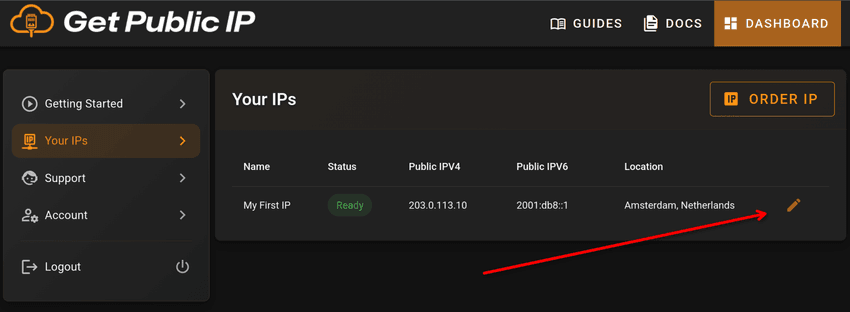
Go to Your IPs in the dashboard and click the pencil icon at the end of the row for the IP address you want a key for.
Find API Access
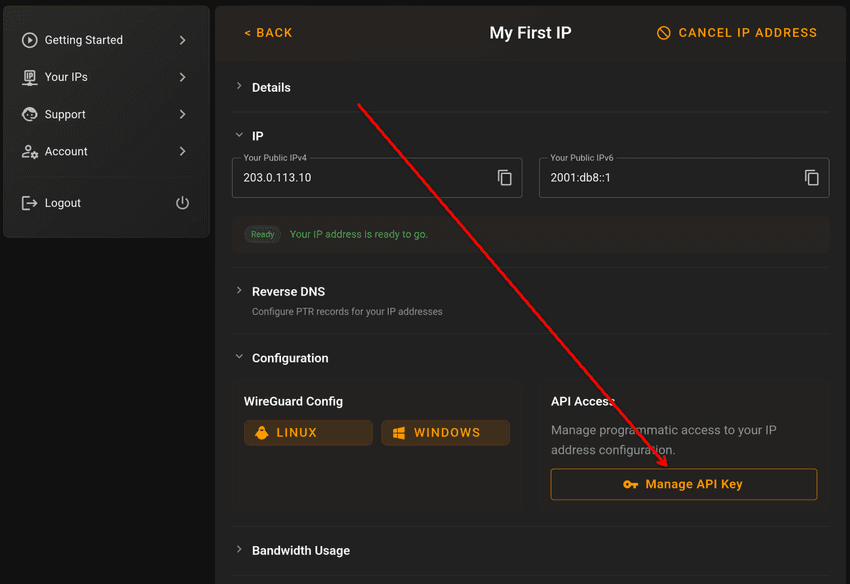
Expand the Configuration section. API Access sits on the right, next to the WireGuard config downloads. Click Manage API Key.
You can do this at any time. An IP address does not have to finish provisioning before you create its key.
Create the key
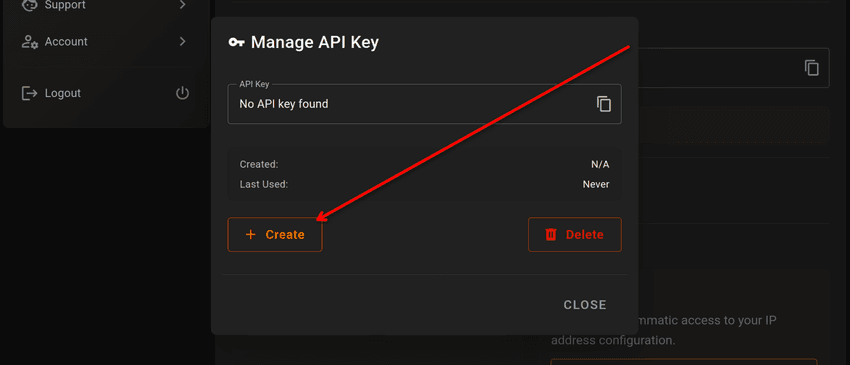
If this IP address has no key yet, the dialog reads No API key found. Click Create.
Copy the key
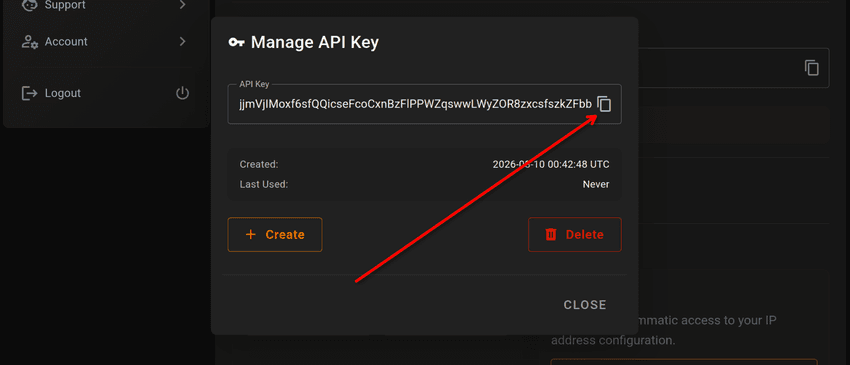
The key appears immediately, along with the time it was created. Use the copy icon on the right of the field to put it on your clipboard.
Treat this key like a password. Anyone holding it can change how your IP address forwards traffic and download its WireGuard configuration.
You do not have to save it right now, though. Unlike most services, GetPublicIP does not hide the key after you first see it. Reopen Manage API Key whenever you need it again.
Last Used stays at Never until something authenticates with the key, then updates on every request. It is the quickest way to confirm a tool you have set up is really reaching us.
Replacing and revoking a key
Both actions live in the same Manage API Key dialog.
- Create replaces the existing key with a new one. There is no confirmation
step, and the old key stops working the moment the new one appears, so anything
still using it, such as a running Docker agent, will start failing with
401until you give it the new key. Do not press Create just to check what your key is; reopening the dialog already shows you. - Delete revokes the key and leaves the IP address without one. Your tunnel, your port mappings and the IP address itself are untouched, and only programmatic access is withdrawn. Create a new key whenever you want it back.
Frequently Asked Questions
Is an API key tied to my account or to a single IP address?
To a single IP address. Each IP address in your dashboard has its own key, and a key only ever grants access to the one it belongs to. If you run several IP addresses, create a separate key for each.
Can I see my API key again after I have created it?
Yes. The key is not shown only once. Reopen Manage API Key on that IP address at any time and it is still there to copy, so you do not need to save it somewhere before closing the dialog.
What happens if I press Create when I already have a key?
You get a brand new key and the old one stops working immediately. There is no confirmation step, so avoid pressing Create as a way of checking your key. Anything still using the previous key, such as a running Docker agent, will start receiving 401 errors until you give it the new one.
How do I revoke an API key?
Open Manage API Key on that IP address and press Delete. The key stops working straight away. Your IP address, its tunnel and its port mappings are all unaffected, and only programmatic access is withdrawn.
Do I need an API key to use my public IP address?
No. You can download your WireGuard configuration and edit port mappings from the dashboard without one. A key is only needed when you want a tool to do that for you, such as the GetPublicIP Docker agent.
Ready to use your key? The Docker guide shows how to expose your containers through your public IP address. New to GetPublicIP? Start with Getting Started.