
Port Forwarding Not Working? Here's Why (and How to Fix It)
Why port forwarding isn't working. Port forwarding usually fails for one of six reasons: the wrong internal IP, a firewall on the host machine, your ISP blocking the port, double NAT from a second router, carrier-grade NAT (CGNAT), or a dynamic public IP that changed. The most common hidden cause is CGNAT: if your ISP shares one public IP across many customers, no router setting can make forwarding work.
Stuck behind CGNAT?
If your ISP is the blocker, port forwarding can't be fixed at the router. Get a dedicated public IP routed to your server over an encrypted tunnel, and inbound connections just work.
You set up port forwarding in your router. The rule looks correct. The service is running. But connections from outside your network still time out, and you have no idea why.
You are not alone. Port forwarding fails silently, and the real cause is often something your router cannot tell you about. This guide walks through the 6 most common reasons port forwarding stops working, how to diagnose each one, and how to fix it. If you have been troubleshooting for hours, start with the quick diagnosis checklist at the bottom to rule things out fast.
The 6 most common reasons port forwarding fails
Before diving into each cause, here is a quick overview so you can jump straight to the one that matches your situation:
- Wrong local IP address: your router is forwarding traffic to a device that moved or no longer has that IP
- Firewall blocking the port: your server's OS firewall is silently dropping incoming traffic
- ISP blocking the port: your internet provider filters certain ports on residential connections
- Double NAT: a second router or ISP modem is performing NAT before your router
- Your ISP uses CGNAT: the most common hidden cause, and the hardest to spot
- Dynamic IP changed: your public IP address changed since you set things up
1. Wrong local IP address
The most basic cause: your router's port forwarding rule points to an IP address that no longer belongs to the device running your service.
This happens when your server gets its IP via DHCP and your router assigns it a different address after a reboot or lease expiration. The forwarding rule still says "send port 443 to 192.168.1.50" but your server is now at 192.168.1.52.
How to check
On your server, verify its current local IP:
Linux:
ip a
Look for your main network interface (usually eth0, enp0s3, or eno1). The inet line shows your IPv4 address.
Windows:
ipconfig
Look for "IPv4 Address" under your active adapter.
macOS:
ipconfig getifaddr en0
Now compare that address to the IP in your router's port forwarding rule. If they don't match, that's your problem.
How to fix it
Give your server a static local IP so it never changes. You have two options:
- DHCP reservation (recommended): In your router's admin panel, find the DHCP settings and reserve a specific IP for your server's MAC address. The server still uses DHCP but always receives the same address.
- Manual static IP: Configure a static IP directly on the server's network interface. On Linux, this is typically done in
/etc/netplan/(Ubuntu/Debian) or via NetworkManager.
Either way, make sure the reserved IP is outside your router's DHCP pool range to avoid conflicts.
2. Firewall blocking the port
Your port forwarding rule is correct and traffic is arriving at your server, but the server's OS firewall is dropping it before it reaches your application.
This is especially common on Linux servers where ufw or iptables is enabled by default, and on Windows where Windows Defender Firewall blocks inbound connections unless you create an explicit rule.
How to check
Linux (ufw):
sudo ufw status verbose
If the output shows Status: active and your port is not listed, the firewall is blocking it.
Linux (iptables / nftables):
sudo iptables -L -n | grep <your-port>
If there is no ACCEPT rule for your port, or if there is a DROP/REJECT rule earlier in the chain, traffic is being blocked.
Windows: Open Windows Defender Firewall with Advanced Security and check the Inbound Rules. Look for a rule that allows your port. If none exists, traffic is being silently dropped.
How to fix it
Linux (ufw):
sudo ufw allow 443/tcp
sudo ufw allow 25565/tcp # Minecraft, for example
Linux (iptables):
sudo iptables -A INPUT -p tcp --dport 443 -j ACCEPT
Windows: Create a new Inbound Rule in Windows Defender Firewall: choose "Port", enter the port number, select "Allow the connection", and apply to all profiles.
After making changes, test from another device on your LAN first (e.g., curl http://192.168.1.50:8080) to confirm the firewall is no longer blocking it before testing from outside.
3. ISP blocking the port
Even if your router and firewall are configured correctly, your ISP may be filtering specific ports on residential connections. This is common and rarely documented.
Ports that ISPs frequently block on residential lines:
- Port 25 (SMTP): blocked to prevent spam from compromised home computers
- Port 80 (HTTP): blocked to discourage web hosting on residential plans
- Port 443 (HTTPS): blocked on some ISPs, less common than port 80
- Port 8080 (HTTP alternate): blocked by some ISPs
How to check
The quickest test is to try a high, random port that no ISP would bother blocking:
- Start a temporary listener on your server:
python3 -m http.server 9999
- Set up a port forwarding rule in your router for port 9999 to your server.
- From outside your network (a phone on mobile data, or a friend's connection), try to connect:
curl http://<your-public-ip>:9999
If port 9999 works but your original port does not, your ISP is blocking that specific port.
How to fix it
- Use a non-standard port: Run your service on a high port (e.g., 8443 instead of 443, 2525 instead of 25). This is the simplest workaround but means anyone connecting needs to know the custom port.
- Call your ISP: Some ISPs will unblock ports on request, especially if you upgrade to a business plan. It's worth asking.
- Use a tunneling service: If you need standard ports and your ISP won't budge, a service like GetPublicIP gives you a dedicated public IP where all ports are available, bypassing ISP port restrictions entirely.
4. Double NAT
Double NAT happens when there are two devices performing Network Address Translation between your server and the internet. The most common scenario: your ISP gave you a modem/router combo, and you plugged your own router into it. Both devices are running NAT, so port forwarding on your router alone is not enough; the ISP modem's NAT drops inbound traffic before it ever reaches your router.
How to check
Run a traceroute from your server and look at the first few hops:
Linux:
traceroute -n 8.8.8.8
Windows:
tracert 8.8.8.8
If you see two private IP addresses in the first hops (e.g., 192.168.1.1 then 192.168.0.1, or 192.168.1.1 then 10.0.0.1), you have double NAT. The first hop is your router, and the second is the ISP modem doing its own NAT.
Another clue: log into your router and check the WAN IP. If it is a private address (192.168.x.x, 10.x.x.x, or 172.16-31.x.x) instead of a public one, something upstream is performing NAT.
How to fix it
- Bridge mode (best option): Log into the ISP modem/router and set it to bridge mode. This disables its NAT and DHCP functions, turning it into a simple modem. Your router then gets the public IP directly on its WAN interface, and port forwarding works as expected.
- DMZ on the ISP modem: If bridge mode is not available, configure the ISP modem's DMZ to forward all traffic to your router's WAN IP. This is less clean but effective.
- Replace the ISP modem: Some ISPs let you use your own modem, eliminating the double NAT entirely.
5. Your ISP uses CGNAT
This is the big one. Carrier-grade NAT (CGNAT) is the number one hidden cause of port forwarding not working, and it is the hardest for most people to diagnose because everything on your end looks correct.
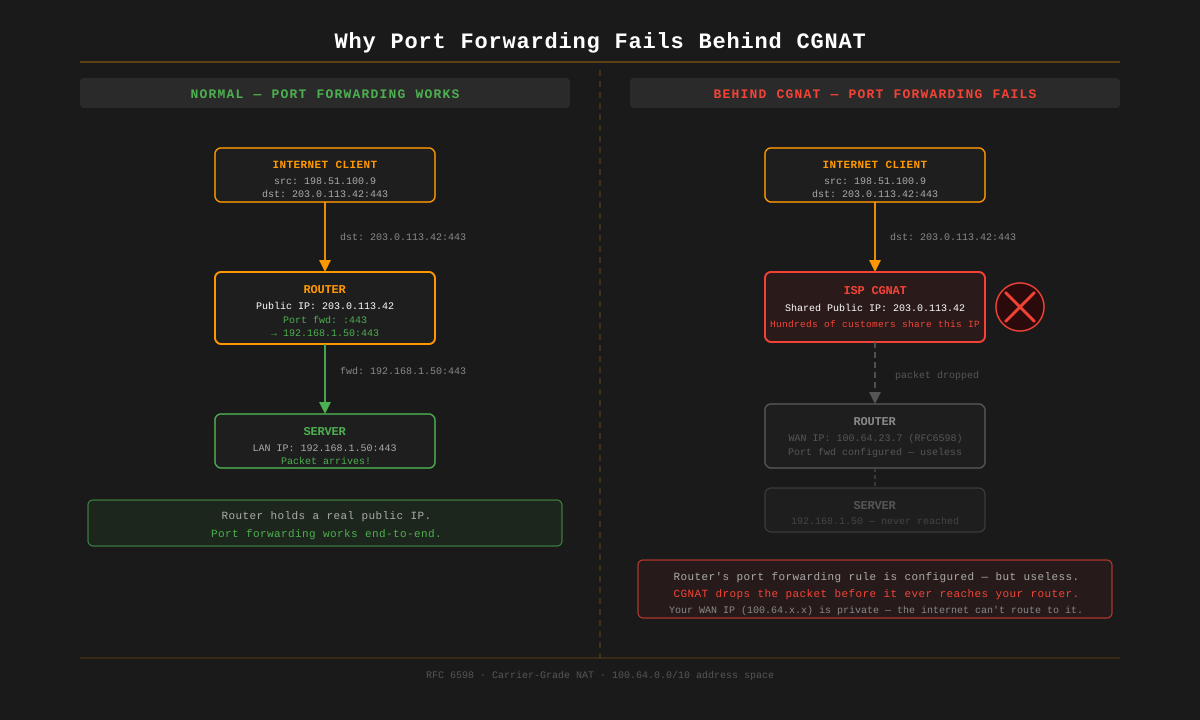
CGNAT means your ISP is performing an additional layer of NAT at their network level, sharing a single public IPv4 address among dozens or hundreds of customers. Your router does not have a real public IP; it has an ISP-internal address. Port forwarding rules on your router only control your router's NAT table. They have zero effect on the ISP's CGNAT, which sits above your router and silently drops all unsolicited inbound connections.
The result: you can configure port forwarding perfectly, your firewall rules can be correct, your server can be listening, and outside connections will still time out. No error, no rejection, just silence. This is why it is so frustrating.
For a deep dive on what CGNAT is, how it works, and which ISPs use it, see our complete guide to self-hosting behind CGNAT.
How to check if you are behind CGNAT
Step 1: Log into your router's admin panel and find the WAN IP address (sometimes called "Internet IP" or "External IP").
Step 2: From any device on your network, check your actual public IP:
curl https://api.getpublicip.com/ip
If these two addresses do not match, you are behind CGNAT. Your router thinks it has a public IP, but the ISP is translating it again before it reaches the internet.
Step 3: Check whether the WAN IP is in the CGNAT reserved range. If your router shows an address between 100.64.0.0 and 100.127.255.255, that is the RFC 6598 range reserved specifically for CGNAT. This is a definitive confirmation.
For more ways to check your public IP, see our guide to finding your public IP on Linux.
Why no router configuration can fix CGNAT
Your router's port forwarding rules only control the translation between your LAN (192.168.x.x) and your router's WAN address. But with CGNAT, that WAN address is not public; it is an ISP-internal address. The ISP's NAT device handles the translation from that internal address to the shared public IP, and it has no port forwarding rules for your traffic. You cannot configure it, your ISP controls it, and in most cases they will not add forwarding rules for individual customers.
Changing routers, enabling UPnP, using DMZ mode: none of it matters. The problem is above your network.
6. Dynamic IP changed
If port forwarding was working before and suddenly stopped, your ISP may have changed your public IP address. Most residential internet plans use dynamic IP assignment: your public IP can change when your modem reboots, when the ISP performs maintenance, or simply after a DHCP lease expires.
Anyone trying to connect to your old IP address will reach nothing (or worse, someone else's network).
How to check
curl https://api.getpublicip.com/ip
Compare the result to the IP you have been giving out or using in DNS records. If it changed, that is your answer.
How to fix it
- Dynamic DNS (DDNS): Services like DuckDNS, No-IP, or Cloudflare DNS with an update script can automatically update a hostname to point to your current IP. This does not prevent the IP from changing, but it ensures the hostname always resolves to your latest address. Most routers have built-in DDNS support.
- Static IP from your ISP: Ask your ISP for a static public IP address. This prevents the IP from ever changing. See our guide to getting a static IP for what to expect.
- Dedicated public IP via GetPublicIP: A GetPublicIP address is static by default, does not change, and is not tied to your ISP line. If you switch ISPs or move house, the IP stays the same.
How to fix port forwarding when CGNAT is the problem
If you have confirmed CGNAT is blocking your port forwarding, router-level fixes will not help. You need to get traffic to your server through a different path. Here are three realistic options, from simplest to most capable. For a wider comparison, including dedicated-IP VPNs, see how to get a public IP address.
Option 1: Ask your ISP for a static public IP
Some ISPs offer a dedicated public IP as a paid add-on, typically $5-30/month. This takes you out of the CGNAT pool and gives you a real public address where port forwarding works normally.
Downsides: Not all ISPs offer it (especially on residential plans). The IP is tied to your physical line; move house and you lose it. Residential IPs often have poor sender reputation for email. No failover if your connection drops.
For a full breakdown: How to get a static IP address.
Option 2: Cloudflare Tunnel (free, HTTP/HTTPS only)
Cloudflare Tunnel creates an outbound connection from your server to Cloudflare's edge, and Cloudflare reverse-proxies HTTP/HTTPS traffic back to you. It is free and bypasses CGNAT because the tunnel is outbound (which CGNAT allows).
Downsides: Only works for HTTP and HTTPS. SSL/TLS is terminated at Cloudflare, so they can see your traffic in plaintext. No support for email (SMTP), game servers, VoIP, or any UDP-based protocol. You do not get a real public IP.
For a detailed comparison: GetPublicIP vs Cloudflare Tunnel vs Tailscale.
Option 3: GetPublicIP (dedicated IPv4, any protocol)
GetPublicIP gives you a dedicated public IPv4 address routed to your server over an encrypted WireGuard tunnel. Your server makes an outbound connection to our edge (which CGNAT allows), and all inbound traffic for your public IP flows through that tunnel to your server.
Why this works for port forwarding: You get a real, static public IP address with all 65,535 ports available. Open exactly the ports you need through the management console. Any protocol works: TCP, UDP, ICMP. SSL/TLS is end-to-end encrypted; we never terminate or inspect your traffic.
Setup takes about five minutes: create an account, provision an IP, download the WireGuard config, and start the tunnel. Full walkthrough in the getting started guide. The cost is $8.99/month per IP with no contracts.
Quick diagnosis checklist
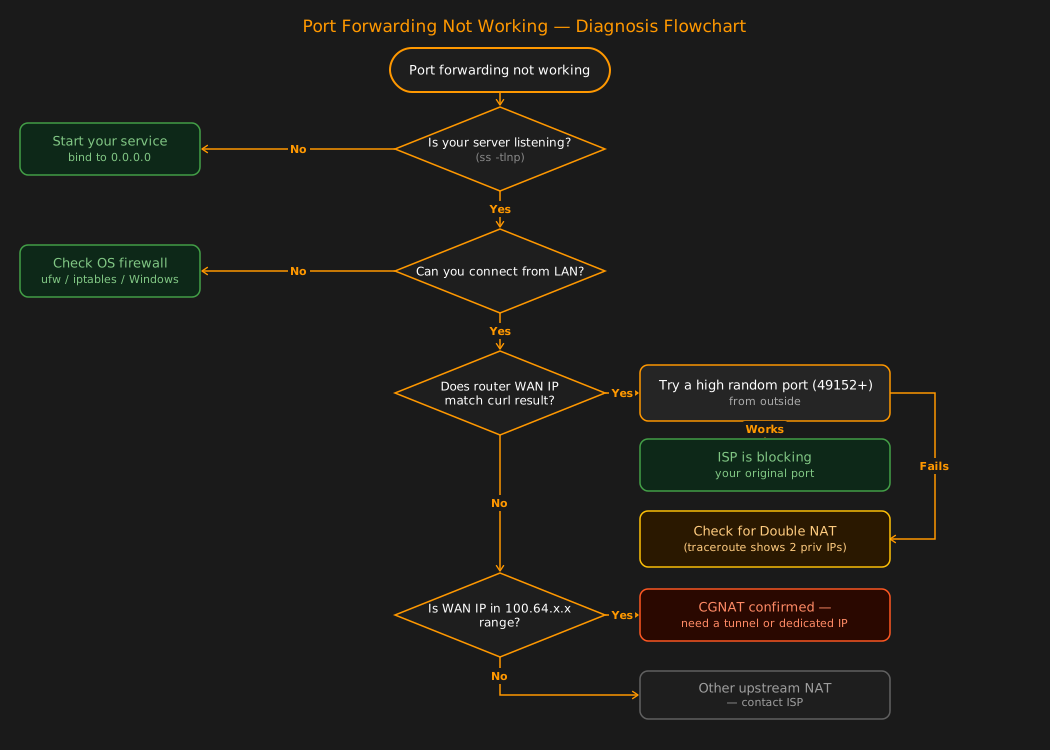
Work through these steps in order. Each one rules out a specific cause, and by the end you will know exactly what is wrong.
1. Is your server actually listening on the port?
# Linux
ss -tlnp | grep <port>
# Windows
netstat -an | findstr <port>
If there is no listener, the service is not running or is bound to the wrong interface (e.g., 127.0.0.1 instead of 0.0.0.0).
2. Can you connect from another device on your LAN?
From a second computer or phone on the same network:
curl http://192.168.1.50:<port>
If this fails, the problem is the server itself (firewall or configuration), not your router or ISP.
3. Is your router forwarding to the correct local IP?
Check the port forwarding rule in your router's admin panel. Verify the destination IP matches your server's current IP (run ip a or ipconfig on the server to confirm).
4. Is your OS firewall allowing the port?
# Linux (ufw)
sudo ufw status
# Linux (iptables)
sudo iptables -L -n
On Windows, check Inbound Rules in Windows Defender Firewall with Advanced Security.
5. Compare your router's WAN IP to your real public IP
curl https://api.getpublicip.com/ip
If the result does not match your router's WAN IP, you are behind CGNAT. Port forwarding at the router level cannot work.
6. Is the WAN IP in the 100.64.x.x range?
If your router's WAN interface shows an address between 100.64.0.0 and 100.127.255.255, CGNAT is confirmed. No router-level fix exists.
7. Test a high random port from outside your network
Forward a port in the 49152-65535 range and test from a phone on mobile data or a friend's network. If even this high port fails from outside, the problem is above your router: either CGNAT or an ISP-level firewall.
Frequently Asked Questions
Why is my port forwarding not working even though it is set up correctly?
The most common hidden cause is CGNAT (carrier-grade NAT), where your ISP shares one public IP among many customers. Your router's port forwarding rules are technically correct, but they only control the first NAT layer. The ISP's CGNAT sits above your router and drops all inbound traffic before it ever reaches you. Compare your router's WAN IP to curl https://api.getpublicip.com/ip. If they differ, CGNAT is the problem. Other causes include OS firewalls silently dropping traffic, the server's local IP changing due to DHCP, or your ISP blocking specific ports on residential connections.
How do I know if my ISP uses CGNAT?
Log into your router and note the WAN IP address. Then run curl https://api.getpublicip.com/ip from any device on your network. If the two addresses do not match, your ISP is using CGNAT. Another strong signal is seeing an address in the 100.64.0.0 through 100.127.255.255 range on your router's WAN interface; that is the reserved CGNAT range defined in RFC 6598. For a full explanation, see our guide to self-hosting behind CGNAT.
Can I port forward behind CGNAT?
No. CGNAT is controlled by your ISP, not your router. No amount of router configuration can fix it because the ISP's NAT device does not know which customer should receive an inbound connection. You need a workaround: request a static public IP from your ISP, use a reverse proxy like Cloudflare Tunnel (HTTP/HTTPS only), or use a dedicated public IP service like GetPublicIP that tunnels a real public IPv4 to your server over WireGuard.
Does a VPN fix port forwarding problems?
A standard privacy VPN (NordVPN, Mullvad, etc.) does not fix port forwarding. Most consumer VPNs block inbound connections entirely; they are designed to hide your IP, not expose one. A tunneling service like GetPublicIP is different: it assigns you a dedicated public IP and routes all inbound traffic to your server through an encrypted WireGuard tunnel, which bypasses CGNAT and ISP port blocks completely.
Why does my ISP block certain ports?
ISPs block ports like 25 (SMTP), 80 (HTTP), and 443 (HTTPS) on residential connections to prevent spam from compromised machines, reduce abuse, and encourage business-tier upgrades. Some ISPs also block ports to comply with regional regulations. You can test whether a specific port is blocked by forwarding a high port like 9999 instead. If traffic arrives on 9999 but not on 80, your ISP is filtering that port.
What is the easiest way to get port forwarding working behind CGNAT?
The easiest full-featured solution is GetPublicIP. Sign up, provision a dedicated public IPv4 address, download the WireGuard config to your server, and start the tunnel. All inbound traffic for your public IP is routed to your server over an encrypted tunnel: any protocol, any port. Setup takes about five minutes and costs $8.99/month. See the getting started guide for a full walkthrough.