
How to Expose Your Home Server to the Internet
You have a server running at home. Maybe it is Home Assistant, Nextcloud, a Minecraft server, a personal website, or a mail server. It works on your local network. Now you want the rest of the internet to reach it.
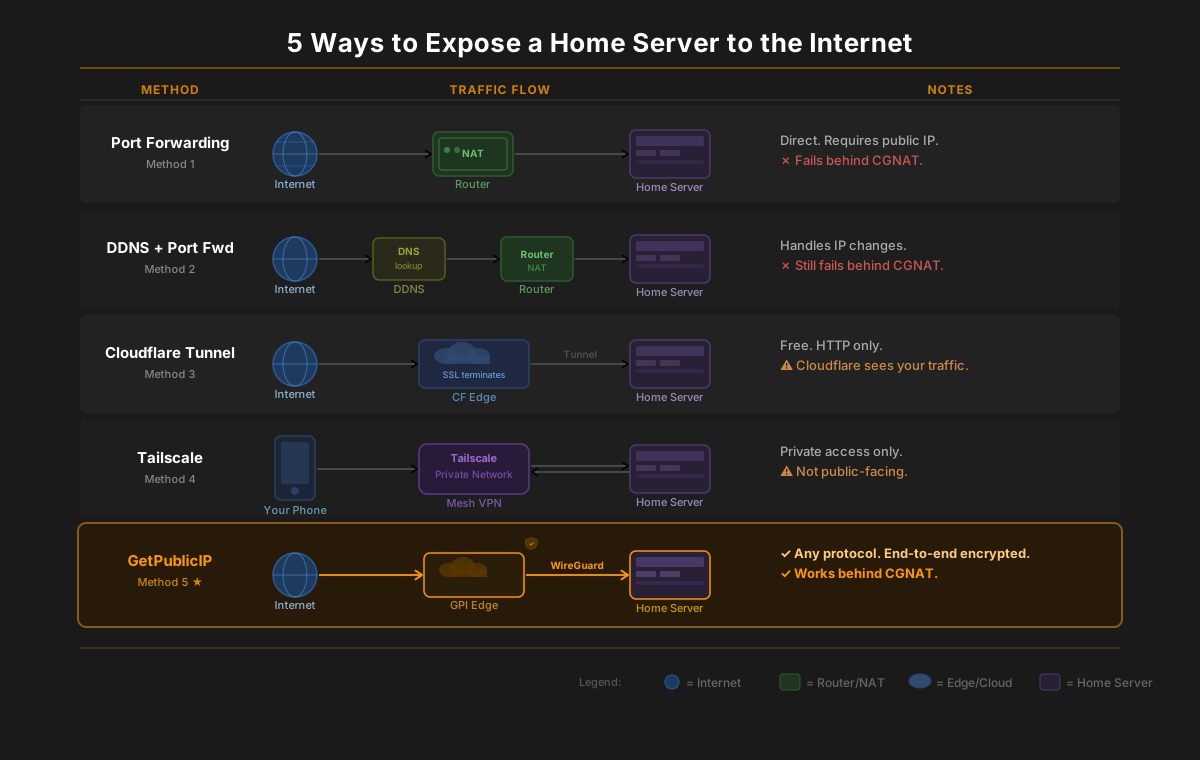
There are five realistic ways to do this, each with different trade-offs around cost, protocol support, and whether they work behind CGNAT. This guide walks through all five, from simplest to most capable, so you can pick the right one for your situation. If you do not yet have a public IP address (see how to get a public IP address), some of these methods will not work at all, and knowing that up front saves you hours of troubleshooting.
Before you start: check your network situation
Before choosing a method, you need to know what kind of internet connection you have. Run through these checks first.
Do you have a public IP?
From any device on your LAN, run:
curl https://api.getpublicip.com/ip
Then log into your router's admin panel and find the WAN IP address (usually under "Status" or "Internet"). If the two addresses match, you have a real public IP. If they don't match, your ISP is doing something upstream, most likely CGNAT.
See our full guide to finding your public IP on Linux for more commands and alternatives.
Is your IP static or dynamic?
Most residential ISPs assign dynamic IPs that change periodically (every few hours, days, or weeks). You can check by running curl https://api.getpublicip.com/ip over a few days and comparing the results. If the address changes, you have a dynamic IP. Your ISP may offer a static IP upgrade, usually for an extra monthly fee.
Are you behind CGNAT?
If your router's WAN interface shows an address in the 100.64.0.0 - 100.127.255.255 range, you are behind carrier-grade NAT. This means your ISP shares one public IP across many customers, and no amount of port forwarding on your router will work. Methods 1 and 2 below are off the table. You need Method 3, 4, or 5.
Method 1: Port forwarding (free, requires a public IP)
Port forwarding is the oldest and most straightforward way to expose a home server. You tell your router: "any traffic arriving on port X, send it to internal IP address Y on port Z."
How to set it up
- Give your server a static local IP address (for example,
192.168.1.100) either by setting it manually on the server or by creating a DHCP reservation in your router. - Log into your router's admin panel.
- Find the port forwarding section (sometimes called "virtual servers" or "NAT rules").
- Create a rule: external port (for example, 443 for HTTPS) forwarded to your server's internal IP on the same port.
- Save and test from an external network (phone on mobile data, or ask a friend to try).
When it works
You have a real public IP from your ISP (not CGNAT), and your ISP does not block the ports you need. This is free and gives you full protocol support, any TCP or UDP port.
When it doesn't work
- CGNAT: Your ISP shares your public IP with other customers. Port forwarding on your router has no effect because the ISP's NAT upstream never forwards the traffic to you. See our CGNAT guide for how to confirm this.
- ISP port blocks: Some ISPs block common ports like 25 (SMTP), 80 (HTTP), or 443 (HTTPS) on residential plans.
- Dynamic IP: Your public IP changes, so anyone trying to reach your server by IP address will lose connectivity when it rotates. Method 2 solves this.
If port forwarding is not working for you, see our port forwarding troubleshooting guide.
Method 2: Dynamic DNS + port forwarding (free, handles IP changes)
If your ISP gives you a real public IP but it changes periodically, dynamic DNS (DDNS) keeps a hostname pointed at your current address.
How it works
A small agent runs on your server (or router, if it supports it) and periodically reports your current public IP to a DNS provider. When your IP changes, the DNS record updates automatically. Anyone connecting to yourserver.duckdns.org always reaches the right address.
Popular DDNS providers
- DuckDNS: Free, open-source, simple API
- No-IP: Free tier with manual renewal every 30 days
- Cloudflare DNS: Free if you already own a domain and use Cloudflare for DNS; update the A record via their API
Setup example with DuckDNS
# Add to crontab: updates your IP every 5 minutes
*/5 * * * * curl -s "https://www.duckdns.org/update?domains=YOURDOMAIN&token=YOURTOKEN&ip=" > /dev/null
Limitations
DDNS only solves the "my IP keeps changing" problem. You still need port forwarding to work, which means you still need a real public IP. DDNS does not bypass CGNAT. If you are behind CGNAT, skip to Method 3, 4, or 5.
There is also a propagation delay. When your IP changes, it can take a few minutes for the DNS update to propagate, during which your server is unreachable.
Method 3: Cloudflare Tunnel (free, HTTP/HTTPS only)
Cloudflare Tunnel (formerly Argo Tunnel) creates an outbound connection from your server to Cloudflare's edge network. Because the connection is outbound, it bypasses CGNAT entirely.
How it works
- Install the
cloudflareddaemon on your server. - Authenticate with your Cloudflare account and create a tunnel.
- Configure which local service to expose (for example,
localhost:8080). - Cloudflare assigns a URL on your domain, and traffic flows: visitor -> Cloudflare edge -> tunnel -> your server.
Pros
- Free on the Zero Trust free tier
- Bypasses CGNAT since your server initiates the connection
- Easy setup with
cloudflaredCLI - Built-in DDoS protection via Cloudflare's network
Cons
- HTTP and HTTPS only on the free plan. No support for raw TCP, UDP, email (SMTP), game servers, VoIP, or SSH on custom ports.
- SSL terminates at Cloudflare. Cloudflare decrypts your HTTPS traffic at their edge, inspects it, and re-encrypts it before forwarding to your server. They can see the plaintext content of every request and response. For some use cases this is a dealbreaker.
- No dedicated IP. Your domain points to Cloudflare's shared IP space, not a dedicated address.
- No reverse DNS. Cannot set PTR records, which rules out email hosting.
Cloudflare Tunnel is an excellent free option if you only need to expose a web application and you are comfortable with Cloudflare terminating your SSL. For a deeper comparison, see GetPublicIP vs Cloudflare Tunnel vs Tailscale.
Method 4: Tailscale / WireGuard mesh (free tier, private access)
Tailscale is a mesh VPN built on WireGuard. It connects your devices in a private network (called a tailnet) with zero configuration.
How it works
- Install Tailscale on your server and on any device you want to connect from (phone, laptop, etc.).
- Log in with the same account on each device.
- Your devices can now reach each other using Tailscale-assigned IPs, regardless of network, CGNAT, or firewalls.
Pros
- Zero configuration: install, log in, done
- Bypasses CGNAT since connections are relayed through Tailscale's coordination servers when needed
- Free tier supports up to 3 users and 100 devices
- End-to-end encrypted within your tailnet
Cons
- Not public-facing. Only devices on your Tailscale network can connect. A random visitor on the internet cannot reach your server.
- Tailscale Funnel can expose HTTPS services publicly, but it is limited to HTTPS only, routes through Tailscale's relay infrastructure, and has undisclosed bandwidth limits. It is not designed for production public hosting.
- Not suitable for public services like websites, email servers, or game servers that need to be reachable by anyone.
Tailscale is the best option if you only need to access your home server from your own devices while away from home. It is not the right tool for hosting public services.
Method 5: Dedicated public IP service (any protocol, public-facing)
GetPublicIP assigns you a real, dedicated public IPv4 address and routes it to your server through an encrypted WireGuard tunnel. Your server receives traffic exactly as if the public IP were configured directly on your machine: all ports, all protocols, no modification or inspection of your packets.
How it works
- Create an account and provision a public IP address.
- Install WireGuard on your server and import the configuration file from your dashboard.
- The WireGuard tunnel connects your server to GetPublicIP's edge infrastructure.
- All inbound traffic for your public IP flows through the tunnel to your server. Your server responds directly.
Because the tunnel is an outbound connection from your server, it works behind CGNAT, restrictive ISPs, and any network configuration.
What makes this different
- All protocols: TCP, UDP, ICMP, every port from 1 to 65535. Host websites, email servers, game servers, VoIP, DNS, SSH, or anything else.
- End-to-end encryption: SSL/TLS terminates at your server, not at a proxy. GetPublicIP never decrypts, inspects, or modifies your traffic.
- Dedicated IP: The IPv4 address is yours alone, not shared with other customers.
- Reverse DNS: Set PTR records for your IP, which is essential for email deliverability.
- Portable: Move your server to a new location, different ISP, different country. Your public IP stays the same.
- Failover: If your primary internet connection drops, your IP can failover automatically.
- Shields your home IP: Internet traffic hits your dedicated IP on our edge, not your ISP-assigned home address.
Pricing
$8.99/month per IP address. No contracts, cancel anytime.
Ready to get started? Create an account or follow the getting-started guide.
Comparison table
| Method | Works behind CGNAT | All protocols | Email hosting | SSL/TLS | Cost | Complexity |
|---|---|---|---|---|---|---|
| Port forwarding | No | Yes | Yes (if port 25 open) | At your server | Free | Low |
| DDNS + port forwarding | No | Yes | Yes (if port 25 open) | At your server | Free | Low |
| Cloudflare Tunnel | Yes | HTTP/HTTPS only | No | At Cloudflare | Free | Low |
| Tailscale | Yes | Yes (private only) | No (not public) | End-to-end | Free tier | Low |
| GetPublicIP | Yes | Yes (all) | Yes | At your server (E2E) | $8.99/mo | Low |
Port forwarding and DDNS are free but require a real public IP and open ports from your ISP. Cloudflare Tunnel is free and bypasses CGNAT but only handles web traffic. Tailscale is excellent for private access but cannot serve the public internet. GetPublicIP is the only option that combines CGNAT bypass, all-protocol support, and a real dedicated public IP.
Which method should you choose?
The right method depends on what you are hosting and how your network is configured.
Just want remote access for yourself? Use Tailscale. Install it on your server and your devices, and you can reach your home server from anywhere. No public exposure, no ports to manage.
Hosting a public website only? Cloudflare Tunnel works well and is free. If you need end-to-end encryption or a dedicated IP, use GetPublicIP.
Running an email server? GetPublicIP is the only option here. Email requires ports 25, 465, 587, and 993, plus reverse DNS (PTR records) for deliverability. No other method in this list supports this.
Hosting a game server (Minecraft, Valheim, Palworld, etc.)? GetPublicIP. Game servers need raw TCP and UDP on specific ports. Cloudflare Tunnel does not support UDP. Tailscale only works for players on your private network.
Need reliability and failover? GetPublicIP. Your public IP persists even if your home ISP connection drops temporarily, and it stays the same if you switch ISPs or move your server.
Behind CGNAT and need all protocols? GetPublicIP. It is the only method that gives you a real, routable public IPv4 address with full protocol support while bypassing CGNAT.
Common mistakes when exposing a home server
Once your server is reachable from the internet, you need to treat it like a public-facing system. These are the most common mistakes.
1. No firewall
Exposing your server without a firewall means every service running on it is accessible to the entire internet. Use ufw, iptables, or nftables to allow only the specific ports your services need. Block everything else.
# Example: allow only HTTP, HTTPS, and SSH
sudo ufw default deny incoming
sudo ufw allow 22/tcp
sudo ufw allow 80/tcp
sudo ufw allow 443/tcp
sudo ufw enable
2. Default passwords on services
Bots scan the internet constantly and try default credentials within minutes of a new service appearing. Change default passwords on everything: databases, admin panels, web apps, SSH. Use strong, unique passwords or SSH keys.
3. Running without HTTPS
If you expose a web service over plain HTTP, login credentials and data are transmitted in cleartext. Use Let's Encrypt (free) to get a TLS certificate. Tools like Caddy and Traefik handle automatic HTTPS out of the box.
4. Not updating software
Unpatched software is the most common entry point for attackers. Enable automatic security updates for your OS and keep your applications current. Subscribe to security advisories for the software you run.
# Enable automatic security updates on Ubuntu/Debian
sudo apt install unattended-upgrades
sudo dpkg-reconfigure -plow unattended-upgrades
5. Exposing your real home IP address
When you use port forwarding with your ISP-assigned IP, attackers can see your home IP address directly. This ties your physical location to your server. A dedicated IP service like GetPublicIP shields your real home IP: internet traffic hits your dedicated IP on our edge infrastructure, and only the WireGuard tunnel connects back to your actual network.
Frequently Asked Questions
How do I expose my home server to the internet?
There are five main methods. Port forwarding works if you have a real public IP from your ISP. Dynamic DNS plus port forwarding handles IP address changes. Cloudflare Tunnel bypasses CGNAT but only supports HTTP and HTTPS traffic. Tailscale provides private remote access for your own devices. A dedicated public IP service like GetPublicIP gives you a real static IPv4 address over a WireGuard tunnel, supporting all protocols and working behind any ISP restriction including CGNAT.
Can I host a website without a public IP?
Yes. Cloudflare Tunnel lets you expose HTTP and HTTPS services for free without a public IP. For a website only, this works well. If you also need email, game servers, or any non-HTTP protocol, you need a dedicated public IP service like GetPublicIP, which assigns you a real public IPv4 address tunneled to your server via WireGuard.
Is it safe to expose a home server to the internet?
It can be, with proper precautions. Use a firewall to limit open ports to only what you need. Run HTTPS with a valid certificate. Keep your software updated. Use strong, unique passwords and disable default credentials. A dedicated IP service like GetPublicIP adds an extra layer by shielding your real home IP address, so attackers never see your actual ISP-assigned address.
Do I need a static IP to host a server at home?
Not necessarily. Dynamic DNS can map a hostname to a changing IP, but you still need a real public IP (not CGNAT) for port forwarding to work. A dedicated public IP service like GetPublicIP gives you a static public IPv4 that stays the same regardless of your ISP, location, or whether your home IP changes.
What is the easiest way to access my home server remotely?
For private access from your own devices, Tailscale is the easiest option. Install it on your server and your phone or laptop, and they connect automatically. For public access where anyone on the internet can reach your server, GetPublicIP is the simplest path. You get a dedicated public IP, install WireGuard, import the config, and your server is online with a real routable address.
How do I expose my home server if my ISP uses CGNAT?
CGNAT blocks all inbound connections, so port forwarding will not work. You have three options that bypass CGNAT. Cloudflare Tunnel works for HTTP and HTTPS websites only. Tailscale works for private access between your own devices. GetPublicIP gives you a real dedicated public IPv4 address over a WireGuard tunnel, supporting all protocols including email, game servers, and raw TCP/UDP.