
Updated Nov 7, 2026
Unraid
The GetPublicIP plugin forwards ports on your public IP address to the apps on your Unraid server, and to other devices on your network. It adds a settings page where you choose each app and port from a list, and runs GetPublicIP as a container next to your other apps.
The plugin is in beta. If something doesn't work, contact us and tell us what happened.
Before you start
- Unraid 7.0 or later.
- Your IP address's API key. See Create an API Key.
- Docker turned on, in Settings › Docker.
- The key not in use anywhere else. One key runs one tunnel: if another computer or Docker host uses it, stop GetPublicIP there first.
Install the plugin
- In Unraid, open the Plugins tab and choose Install Plugin.
- Paste this address and click
Install:https://repo.getpublicip.com/unraid/getpublicip.plg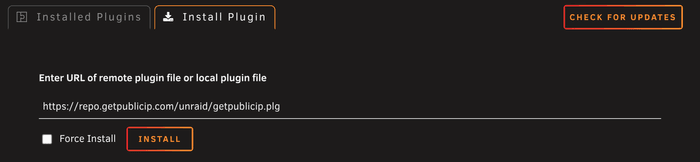
- When the window says GetPublicIP is installed, click
Done.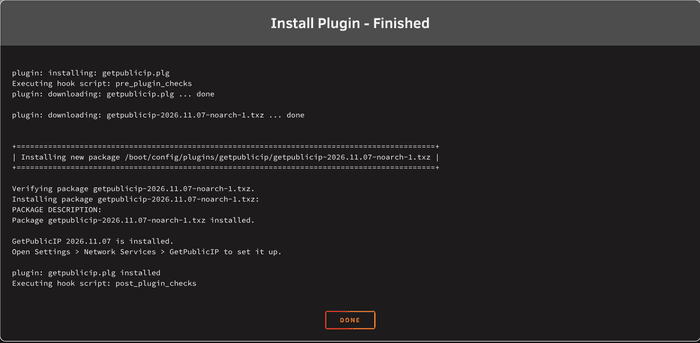
Set it up
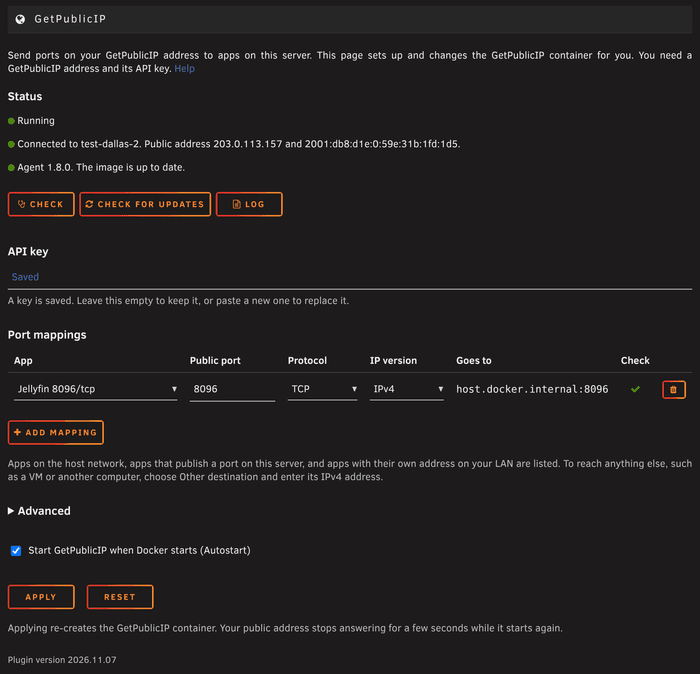
Open Settings › Network Services › GetPublicIP.
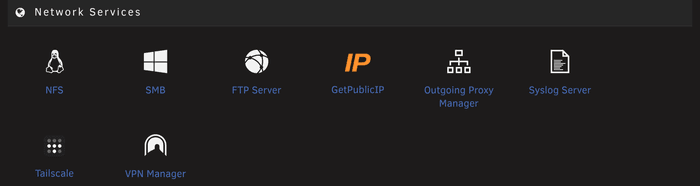
- Paste your API key under API key.
- Click
Add mappingand fill in the row, as in the table below. Add a row for each port you want to forward.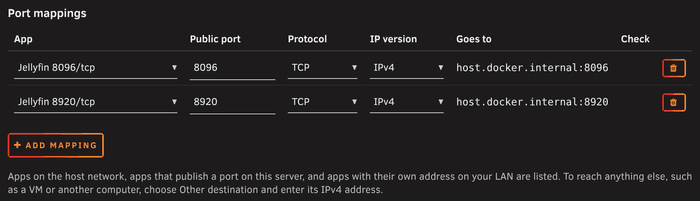
- Leave Autostart on, so GetPublicIP starts again after a reboot.
- Click
Apply.
| Column | What to enter |
|---|---|
| App | The app and port the mapping goes to. The list shows the apps on your server and their ports. Choose Other destination for anything else. |
| Public port | The port visitors connect to on your public IP address. A range, such as 60000-60099, forwards each port to the same port. |
| Protocol | TCP, UDP or both. |
| IP version | IPv4. See IPv6. |
| Goes to | Filled in for you from the app you chose. |
The page creates the GetPublicIP container, which then appears on the Docker tab. Once the tunnel is up, usually within a few seconds, Status says Connected and shows your public address.
Which apps are listed
| The app | In the list | Notes |
|---|---|---|
| On the host network | Yes | |
| On a bridge network, with its port published on your server | Yes, as the port it publishes | Most Unraid apps are set up like this. |
| On a bridge network, with its port not published | Greyed out | Publish the port in the app's settings on the Docker tab, or put the app on the host network. |
With its own address on br0 | Yes | Needs host access to custom networks, below. |
| A VM, or another device on your network | Choose Other destination | Enter its IPv4 address and port. |
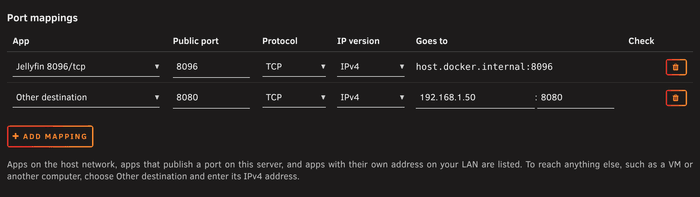
Unraid keeps apps with their own address on br0 apart from the server itself, and GetPublicIP reaches them through the server. Until you turn on host access to custom networks, their mappings fail with no route to host, and the page warns you next to the app. To turn it on:
- Go to Settings › Docker, set Enable Docker to No, and click
Apply. - Switch on Advanced View, set Host access to custom networks to Enabled, and click
Apply. - Set Enable Docker back to Yes and click
Apply.
The Check column
After you apply, the page asks GetPublicIP whether each mapping reaches its app:
- A green tick: the app answered.
- A red cross: it didn't, and the reason is under the row.
nothing listensmeans the app is stopped, or listens on a different port. An app inside a container must listen on0.0.0.0, not127.0.0.1.
Click Check under Status to check again, for example after starting an app.
Changing your mappings
Change the table and click Apply. Reset discards changes you haven't applied. Applying re-creates the GetPublicIP container, so your public address stops answering for a few seconds.
If you apply again within a minute or two of a change, Status can say Restarting for about a minute. Your address is still applying the earlier change, and GetPublicIP starts again on its own once it has. Click Log to see what it's doing.
Updates
The plugin updates from the Plugins tab, like your other plugins.
GetPublicIP itself runs from a container image, which has updates of its own. Status shows its version and whether a newer one is out, from the same check the Docker tab makes. Check for updates checks now, and Update downloads the new version and restarts GetPublicIP with your settings. Updating from the Docker tab does the same.
Tunnel MTU
Leave this empty unless the tunnel is up but nothing gets through it. That happens when your connection carries smaller packets than the tunnel needs: the log shows TLS handshake timeout, and your mappings never take effect. When the page sees this, it suggests a value.
- Open Advanced, under the table.
- Set Tunnel MTU to
1280and clickApply.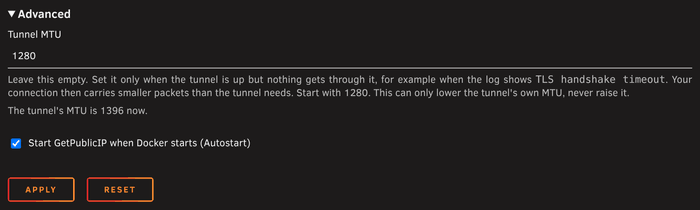
After the next check, the page shows the tunnel's MTU. If GetPublicIP is too old for this setting, the page says so: click Update under Status.
IPv6
GetPublicIP reaches the apps on your server and the devices on your network by their IPv4 addresses. So mappings to them are IPv4 only: visitors reach them on your public IPv4 address, and the page doesn't offer IPv6 for them.
Remove GetPublicIP
- On the Plugins tab, remove the GetPublicIP plugin. The GetPublicIP container stays and keeps running.
- To stop using GetPublicIP, remove the GetPublicIP container from the Docker tab as well.
Troubleshooting
- Status says
Not connectedorRestarting. ClickLog: the log says what went wrong. Right after a change, give it a minute or two. - A mapping's check is red. Read the reason under its row. Most often the app is stopped, listens on
127.0.0.1only, or is onbr0without host access. - The tunnel is up, but the log shows
TLS handshake timeout. Set Tunnel MTU. - Both this server and another computer keep reconnecting. They're using the same API key. Use one key per server.
If you're still stuck, contact us with the log.