
How to Find Your IP Address on a Mac
Your IPv4 Address
ISP:City:
Country:
Your IPv6 Address
ISP:City:
Country:
Your Mac has two IP addresses. The local one is in System Settings › Network: click Wi-Fi or Ethernet, then Details › TCP/IP. The public one, which websites see, isn't shown anywhere in macOS. Open Terminal and run:
curl -4 ip.getpublicip.com # public IPv4
curl -6 ip.getpublicip.com # public IPv6
Behind CGNAT, or your IP keeps changing?
Get a dedicated public IPv4 and IPv6 that stays yours and accepts inbound connections.
We ran every command on this page on a Mac mini with macOS 27.0.1 on 3 November 2026. Three of them didn't behave the way most guides describe: ipconfig getifaddr en0 on a Mac mini, curl ifconfig.me on a network with IPv6, and the usual dig command.
Key takeaways
- Your local IP (usually
192.168.x.xor10.x.x.x) is in System Settings › Network › Details › TCP/IP. In Terminal,ipconfig getifaddr en0prints it. - Your public IP only shows up when you ask a server outside your network:
curl -4 ip.getpublicip.com. en0is Wi-Fi on a MacBook but Ethernet on a Mac mini. Ifipconfig getifaddr en0prints nothing, your connection has another name, oftenen1.- On a network with IPv6,
curl ifconfig.meprints your IPv6 address and the usualdigcommand prints nothing. Add-4for IPv4. - If your router's WAN address differs from your public IP, your ISP is using CGNAT, and connections from the internet can't reach your Mac.
Local IP vs public IP on a Mac
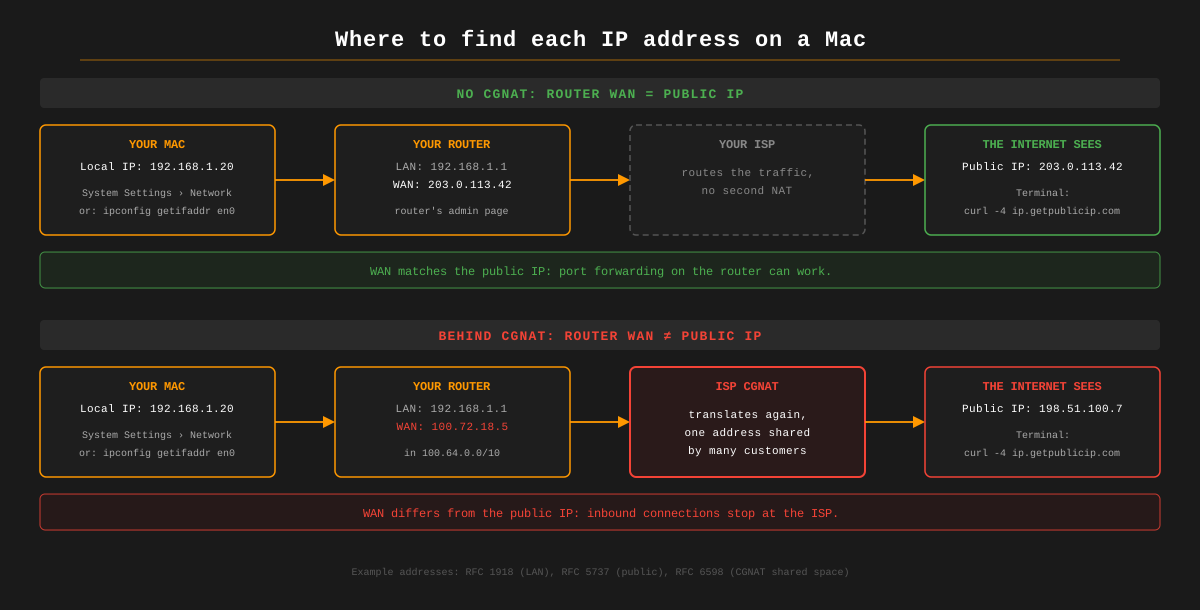
Your router gives each device at home a local (private) IP address from a range reserved for private networks by RFC 1918: 10.0.0.0/8, 172.16.0.0/12 or 192.168.0.0/16. That's the address macOS shows you, and nothing outside your home can reach it.
When the Mac connects to a website, the router rewrites the traffic to come from its own public IP address, the one your ISP assigned. This is NAT (network address translation). Websites and game servers only ever see the public address, and macOS can't know it without asking a server outside your network.
With a VPN connected, websites see the VPN's address, and the commands below report that address instead of your ISP's.
Find your local IP address in System Settings
These are the steps in Apple's Mac User Guide for macOS Ventura and later:
- Choose Apple menu › System Settings.
- Click Network in the sidebar. You may need to scroll down.
- Click the connection you're using, Wi-Fi or Ethernet.
- Click Details, then TCP/IP.
- Read the IP address field. That's your local IPv4 address. The Router field below it is your router's address.
On Wi-Fi there's a quicker way: hold Option and click the Wi-Fi icon in the menu bar. Apple's guide to the Wi-Fi status menu says this shows the IP address and router address under the network you're connected to, along with the channel and security type.
macOS Monterey and earlier have System Preferences instead. Open System Preferences › Network and select the connection: the IP address is in the status text, and Advanced › TCP/IP has the full details.
Find your local IP address in Terminal
Open Terminal from Spotlight (Command-Space, then type Terminal) or from Applications › Utilities. Then run:
ipconfig getifaddr en0
It prints the IPv4 address of en0 and nothing else:
192.168.1.20
On a MacBook Air or MacBook Pro, en0 is Wi-Fi, so that's usually all you need.
If ipconfig getifaddr en0 prints nothing
On Macs with a built-in Ethernet port, en0 is the Ethernet port, and Wi-Fi gets another name. Our Mac mini was online over Wi-Fi, and ipconfig getifaddr en0 printed nothing at all and exited with status 1. Its Wi-Fi is en1.
To see which name belongs to which port:
networksetup -listallhardwareports
Trimmed output from our Mac mini:
Hardware Port: Ethernet
Device: en0
Hardware Port: Wi-Fi
Device: en1
To skip the guessing, ask macOS which interface it uses to reach the internet and print that one's address:
ipconfig getifaddr "$(route -n get default | awk '/interface:/{print $2}')"
With a full-tunnel VPN connected, the default route goes through the VPN's utun interface, so this prints the VPN's internal address instead.
| Interface | What it usually is |
|---|---|
en0 | Wi-Fi on a MacBook; Ethernet on a Mac with an Ethernet port |
en1, en2, … | Wi-Fi on desktop Macs, Thunderbolt ports, USB Ethernet adapters |
lo0 | Loopback, always 127.0.0.1 |
utun0, utun1, … | VPN tunnels. macOS also creates a few for its own services |
bridge0 | Thunderbolt Bridge |
awdl0, llw0 | AirDrop and other Apple wireless features |
See every address, IPv6 included: ifconfig
ifconfig en0
Output (addresses replaced with examples):
en0: flags=8863<UP,BROADCAST,SMART,RUNNING,SIMPLEX,MULTICAST> mtu 1500
ether 3a:5c:91:07:be:42
inet6 fe80::4d1:a46b:d416:9156%en0 prefixlen 64 secured scopeid 0x12
inet6 2001:db8:4c2a:1e00:1c8a:5f2e:9b7d:3a10 prefixlen 64 autoconf secured
inet6 2001:db8:4c2a:1e00:84f3:22c1:6e0a:b5d7 prefixlen 64 autoconf temporary
inet 192.168.1.20 netmask 0xffffff00 broadcast 192.168.1.255
status: active
inetis the IPv4 address.netmask 0xffffff00is255.255.255.0, a/24.inet6 fe80::…is a link-local address. It only works on your own network segment.- The other two
inet6lines are global IPv6 addresses.securedis the stable one.temporarychanges regularly, and macOS uses it for outgoing connections by default (sysctl net.inet6.ip6.prefer_tempaddris1).
networksetup -getinfo Wi-Fi gives a tidier summary of the IP address, subnet mask and router. Don't rely on it for IPv6: on our Mac it said IPv6 IP address: none while ifconfig listed two global IPv6 addresses on the same interface.
Find your public IP address in Terminal
curl -4 ip.getpublicip.com
Output:
IP Address: 203.0.113.42
ISP: Example ISP
City: Chicago
Country: United States
Swap -4 for -6 to get your public IPv6 address. If your network has no IPv6, curl fails with a connection error.
On IPv6, your router usually doesn't translate addresses, so the global address in ifconfig is often the one websites see, but not always. On our test network, the address curl -6 reported didn't match either IPv6 address on the Mac, because the router translates IPv6 too, so check with curl -6 rather than reading it off ifconfig.
For the bare address with nothing else, which is handy in scripts:
curl -4 -s ifconfig.me
Why plain curl ifconfig.me can print an IPv6 address
On a network with IPv6, curl tries IPv6 first. On our Mac, curl -s ifconfig.me and curl https://api.getpublicip.com/ip both returned the IPv6 address. Port forwarding rules and most allowlists want the IPv4 address, so add -4 whenever you need it.
There's no wget on a Mac
macOS 27.0.1 includes curl, dig, host and nslookup, but not wget. The wget -qO- one-liners in many Linux guides fail with zsh: command not found: wget. Use curl, or install wget with Homebrew (brew install wget).
The DNS method: add -4 to dig
You can also get your public IP from a DNS lookup instead of a web request:
dig -4 +short myip.opendns.com @resolver1.opendns.com
Leave out -4 and, on a network with IPv6, dig sends the query to OpenDNS over IPv6. On our Mac that came back empty (status: NOERROR, zero answers), because OpenDNS reports the address your query came from, and an IPv6 query can't tell it your IPv4 address. The IPv6 version works the same way:
dig -6 +short AAAA myip.opendns.com @resolver1.opendns.com
Google's equivalent returns the address in quotes:
dig -4 TXT +short o-o.myaddr.l.google.com @ns1.google.com
| Command | Prints | Needs |
|---|---|---|
curl -4 ip.getpublicip.com | IPv4, ISP and location | nothing, curl ships with macOS |
curl -6 ip.getpublicip.com | IPv6, ISP and location | IPv6 on your network |
curl -4 -s ifconfig.me | IPv4 only | nothing |
dig -4 +short myip.opendns.com @resolver1.opendns.com | IPv4 only, over DNS | outbound DNS to OpenDNS |
wget -qO- ifconfig.me | Fails on a stock Mac | Homebrew's wget |
Find your public IP without Terminal
Open getpublicip.com in a browser. The boxes at the top of this page show the same thing: your public IPv4 and IPv6 addresses.
If you use iCloud Private Relay, a website open in Safari sees a temporary relay address, not yours. Apple says the second relay "generates a temporary IP address" for the connection. Use the Terminal commands, which don't go through Safari, or open the page in another browser.
Your router's admin page also shows a public-facing address, usually labelled WAN or Internet. Comparing the two is how you check for CGNAT.
Is your Mac behind CGNAT?
Carrier-grade NAT (CGNAT) means your ISP puts one more NAT between your router and the internet, and shares one public address among many customers. It's most common on mobile networks, and more and more fibre ISPs use it where IPv4 addresses are scarce. Outbound traffic works normally, but nothing on the internet can start a connection to you, so port forwarding on your router does nothing.
To check:
- Find your router's address: the Router field in Details › TCP/IP, or the
gatewayline fromroute -n get defaultin Terminal. - Type that address into a browser and log in to the router.
- Find the WAN or Internet address on its status page.
- Compare it with
curl -4 ip.getpublicip.com.
If the two match, you have your own public IPv4 address and port forwarding can work. If they differ, you're behind CGNAT. A WAN address from 100.64.0.0 to 100.127.255.255 settles it: that's 100.64.0.0/10, the range RFC 6598 reserves for carrier-grade NAT.
To host something on your Mac from behind CGNAT, such as a Plex library or a Minecraft server, you need a way in that doesn't depend on your ISP. Self-hosting behind CGNAT compares the options. For a plain website, Cloudflare Tunnel is free and usually enough. UDP services such as game servers, and anything that needs the visitor's real address, are harder; the guide covers which tools handle them.
GetPublicIP for Mac gives your Mac a public IPv4 and IPv6 address of its own, routed to it over a WireGuard tunnel, with the ports you choose forwarded to it. It works behind CGNAT, because the Mac connects out to our server.
Your MAC address is a different thing
A MAC address (media access control address) is the hardware address of a network port, written as six pairs of hex digits like 3a:5c:91:07:be:42. It has nothing to do with Apple's Macs. Your router uses it to tell devices apart, and it doesn't travel past your router.
On Wi-Fi, macOS can use a private Wi-Fi address in place of the hardware one. Apple's Wi-Fi settings guide lists three modes, Off, Fixed and Rotating, under Wi-Fi › Details, along with the current Wi-Fi address and the hardware MAC address.
In Terminal, the two are different commands:
ifconfig en0 | awk '/ether/{print $2}' # the address in use now (may be private)
networksetup -getmacaddress en0 # the hardware address
On our Mac mini, whose Wi-Fi is en1, the two returned different addresses with a private address turned on.
Frequently Asked Questions
How do I find my IP address on a Mac?
Your local IP is in System Settings › Network: click the connection you're using (Wi-Fi or Ethernet), then Details › TCP/IP, and read the IP address field. On Wi-Fi you can also Option-click the Wi-Fi icon in the menu bar. Your public IP isn't shown anywhere in macOS. Run curl -4 ip.getpublicip.com in Terminal, or open getpublicip.com in a browser.
How do I find my public IP address on a Mac using Terminal?
Run curl -4 ip.getpublicip.com for your public IPv4 address, or curl -6 ip.getpublicip.com for IPv6. Each prints the address with your ISP and location. For the bare address only, run curl -4 -s ifconfig.me. curl ships with macOS, so there's nothing to install.
Why does ipconfig getifaddr en0 show nothing on my Mac?
en0 isn't your active connection. On a MacBook en0 is Wi-Fi, but on a Mac with a built-in Ethernet port, such as a Mac mini, en0 is Ethernet and Wi-Fi has another name (en1 on our Mac mini). Run networksetup -listallhardwareports to see which name is which, or ask for the interface that carries your default route: ipconfig getifaddr "$(route -n get default | awk '/interface:/{print $2}')".
Why does my Mac show a 192.168 address instead of my real IP?
192.168.x.x is a private address that your router gave the Mac on your home network. The internet never sees it. Your router swaps it for the public IP your ISP gave the router, a process called NAT. To see the public address, ask a server outside your network: curl -4 ip.getpublicip.com in Terminal.
Why does curl ifconfig.me show an IPv6 address on my Mac?
When your network has IPv6, curl tries it first, so services that answer on both report the IPv6 address you connected from. Add -4 to get your IPv4 address: curl -4 ifconfig.me. The same goes for dig: on an IPv6 network, dig +short myip.opendns.com @resolver1.opendns.com can return nothing, while dig -4 returns your IPv4 address.
Is my IP address the same as my MAC address?
No. An IP address identifies your Mac on a network and can change. A MAC address is the hardware address of a network port. On Wi-Fi, macOS can use a private Wi-Fi address instead of the hardware one. ifconfig en0 shows the address in use on the ether line, and networksetup -getmacaddress en0 shows the hardware address.
How do I find my router's IP address on a Mac?
In System Settings › Network › (your connection) › Details › TCP/IP, the Router field is your router's local address, usually 192.168.0.1 or 192.168.1.1. In Terminal, run route -n get default and read the gateway line. Type that address into a browser to reach your router's admin page, where its WAN (public-facing) address is shown.
Related guides
- How to find your public IP address (any device): the overview, including phones and routers
- Find your public IP on Linux: curl, wget and dig one-liners
- Find your IP address on Windows: PowerShell and Command Prompt
- Self-hosting behind CGNAT: when your public IP can't accept connections
- Port forwarding not working?: the usual causes, in order