
How to Use a Mac mini as a Home Server
A Mac mini makes a quiet, low-power home server. Apple lists the M6 model at 4 W when idle. To run one unattended, stop it sleeping, set it to start again after a power cut, give it a fixed local address and turn on Remote Login. Then choose how the internet reaches it: port forwarding, Cloudflare Tunnel, Tailscale or a public IP of its own.
Behind CGNAT?
Get a dedicated public IPv4 and IPv6 that accepts inbound connections on any port, routed to your Mac mini.
This guide comes from setting up a Mac mini on macOS 27.0.1 as a test server for our own software in November 2026. Where something here was tested on that machine, it says so.
Key takeaways
- The Mac mini idles at 4 W (Apple's figure for the M6 model), about 35 kWh a year if it did nothing else.
- Before it can run unattended, it needs sleep turned off, a restart after power cuts, a fixed local IP address and Remote Login.
- With FileVault on, it waits for a password after every restart. macOS 26 and later can unlock it over SSH.
- Docker Desktop only runs while you're signed in, and containers behind its published ports see every visitor as
192.168.65.1. Native apps don't have either problem. - Behind CGNAT, port forwarding can't work. Cloudflare Tunnel covers websites; anything else needs a public IP routed to the Mac. GetPublicIP for Mac does that from the Mac itself, and programs running on macOS see each visitor's real address.
Why a Mac mini works as a server
It uses very little power. These are Apple's own figures from its Mac mini power consumption page, where idle means Finder open with the default power settings:
| Mac mini | Idle | Maximum |
|---|---|---|
| Mac mini (M6) | 4 W | 70 W |
| Mac mini (M5 Pro) | 6 W | 145 W |
| Mac mini (2024), M4 | 4 W | 65 W |
At 4 W around the clock, that's about 35 kWh a year. A server that's actually serving uses more, but most home services sit near idle most of the time.
It's also quiet, small enough to sit next to a router, and macOS already includes several server features: file sharing, Time Machine backups to the Mac, SSH and screen sharing.
Where it falls short:
- There's no macOS Server any more. Apple discontinued it on 21 April 2022; file sharing, Time Machine and caching moved into macOS. Everything else comes from Homebrew, native apps or Docker.
- Docker runs in a virtual machine. Linux containers need Docker Desktop (or OrbStack), which reserves memory for its VM and changes how network traffic reaches containers. See Native apps or Docker.
- There are no drive bays, so a media library usually lives on a USB or Thunderbolt drive.
- macOS updates restart it, which matters most with FileVault on (see below).
Set up macOS to run unattended
Apple has its own short checklist, Set up your Mac mini as a server. These are the steps that matter for a home server, in order:
- Stop it sleeping. Open System Settings › Energy and turn on "Prevent automatic sleeping when the display is off". Turn on "Wake for network access" too. These are the names in Apple's sleep and wake settings. A sleeping Mac answers nothing.
- Make it start again after a power cut. In the same Energy settings, Apple's server checklist points to the "Start up when power is connected" option.
- Give it a fixed local IP address. Either reserve an address for it in your router, or set it on the Mac: System Settings › Network › your connection › Details › TCP/IP, and choose "Using DHCP with manual address". Apple's checklist recommends this. Our test Mac keeps its address this way; the Terminal equivalent is
networksetup -setmanualwithdhcprouter Wi-Fi 192.168.1.50. - Turn on Remote Login and Screen Sharing in System Settings › General › Sharing, so you can manage it without a display. Remote Login is SSH.
- Decide what happens with FileVault (next section).
- Leave the firewall's "Block all incoming connections" off. Apple's checklist suggests turning the macOS firewall on, which is fine: it may ask once whether each program can accept connections. "Block all incoming connections" refuses connections to every program, so nothing on the server can be reached.
Wi-Fi works, but Ethernet is steadier, and in one published test the FileVault unlock over SSH first worked only over Ethernet (see below).
FileVault and restarts
With FileVault on, a Mac that restarts, after an update or a power cut, stops at the login window until someone types a password. Nothing you've installed starts before that, and Apple turns off automatic login while FileVault is on.
macOS 26 and later can be unlocked over SSH: if Remote Login is on, you can connect before anyone has logged in and enter an administrator's password, and the Mac finishes starting up. Jeff Geerling tested this on a Mac mini and found it worked over Ethernet but not Wi-Fi at first, and over Wi-Fi as well from macOS 26.5.
So a FileVault Mac mini can stay encrypted and still be managed remotely, as long as someone can SSH in after each restart. Turning FileVault off avoids that, but leaves the disk unencrypted if the Mac is stolen.
Native apps or Docker
Most self-hosted software runs either directly on macOS or in Docker Desktop. On a Mac the choice affects more than it does on Linux:
| Native (Homebrew or an app) | Docker Desktop | |
|---|---|---|
| Starts after a restart | Yes, with sudo brew services start (a launch daemon, started at boot) | Only once you sign in to the Mac |
| Sees each visitor's real IP address | Yes | No: containers see 192.168.65.1 |
| Runs Linux-only software | No | Yes |
| Memory | Only what the program uses | Plus the memory reserved for Docker's VM |
With Homebrew, brew services start <formula> starts a service and runs it again at every login. With sudo, it's installed in /Library/LaunchDaemons and starts at boot instead, which is what a server wants. That's from Homebrew's own documentation.
Docker Desktop is an app that runs in your user session. It starts when you sign in, if "Start Docker Desktop when you sign in to your computer" is on, and not before. A Mac mini that restarts runs no containers until someone signs in, at the Mac or over Screen Sharing.
Docker Desktop also hides visitors' addresses. It relays each published port through its own process on the Mac, so every container behind one sees the visitor as 192.168.65.1. Logs, rate limits and fail2ban stop working properly. We measured this on our test Mac; why Docker on a Mac sees 192.168.65.1 has the details and the fixes. Publish ports as "80:80", not "0.0.0.0:80:80": the second accepts IPv4 only.
One more macOS detail: it lets a program that isn't root listen on port 80 or 443 as long as it listens on all addresses. Binding one specific address on those ports fails with "permission denied" unless the program runs as root. We hit this on our test Mac.
Make it reachable from the internet
First, check whether your connection can accept inbound connections at all. Compare your router's WAN address with your public IP address (curl -4 ip.getpublicip.com in Terminal). If they differ, or the WAN address is between 100.64.0.0 and 100.127.255.255, your ISP uses CGNAT and port forwarding can't work. How to find your public IP address has the details.
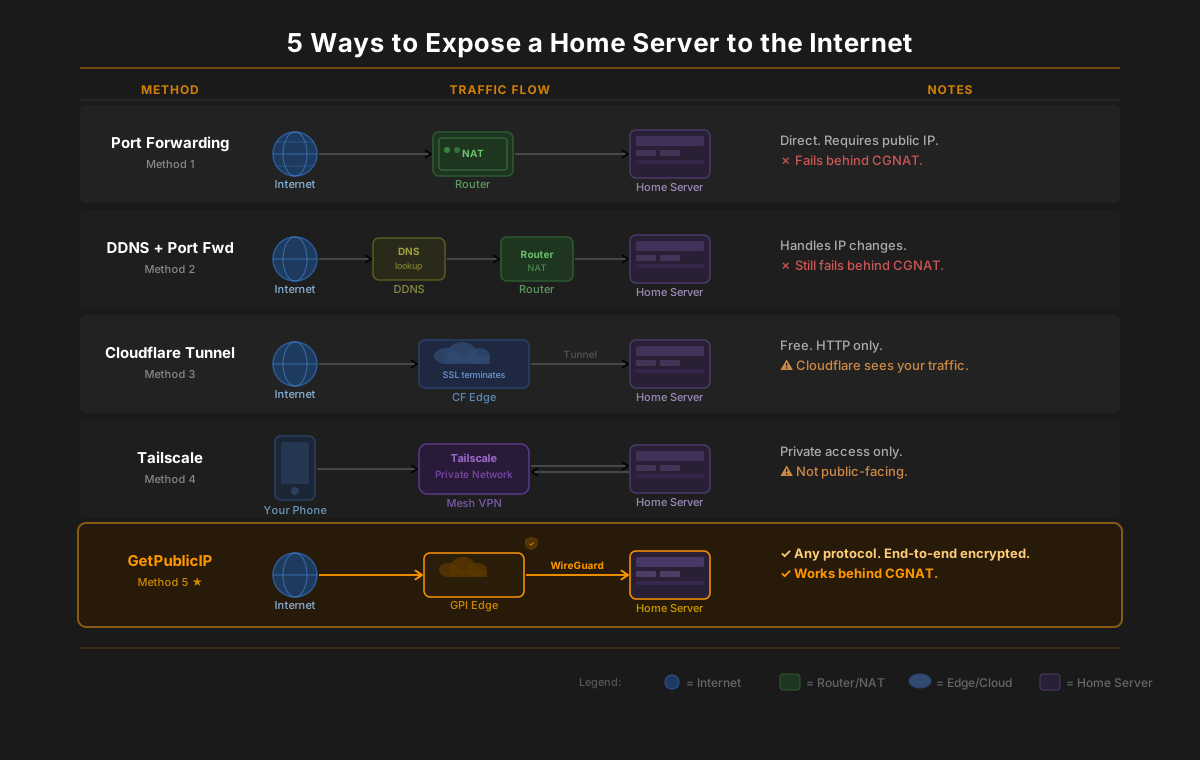
| Method | Works behind CGNAT | What it carries | Visitors need software | Cost |
|---|---|---|---|---|
| Port forwarding on your router | No | Any TCP or UDP port | No | Free |
| Cloudflare Tunnel | Yes | Websites; other TCP only for visitors running cloudflared | No, for websites | Free |
| Tailscale | Yes | Anything, between your own devices; Funnel publishes TLS on ports 443, 8443 and 10000 | Yes, except through Funnel | Free personal plan |
| A public IP address (GetPublicIP) | Yes | Any TCP or UDP port, IPv4 and IPv6 | No | $8.99 a month per address |
The sources: Cloudflare says non-HTTP services "require installing cloudflared on the client", and Tailscale says "Funnel can only listen on ports 443, 8443, and 10000".
Which to pick:
- For a website or web app behind CGNAT, Cloudflare Tunnel is free and usually enough.
- If only you and your family need access, use Tailscale, with its app on each device.
- Game servers, mail, VoIP, and anything else other people connect to with their own software need a public IP address on the Mac's side, either from your ISP with port forwarding, or routed to the Mac over a tunnel.
GetPublicIP gives you a dedicated public IPv4 and IPv6 address routed to your server over an encrypted WireGuard tunnel, with any TCP or UDP port forwarded. On a Mac mini you can use it through our Mac app or our Docker image.
With GetPublicIP for Mac
GetPublicIP for Mac (beta) connects the Mac itself. It runs on macOS 15 Sequoia or later, and the setup guide has each step with screenshots:
- Drag the app into Applications, open it, and approve its network extension in System Settings. macOS asks for that once.
- Sign in with your IP address's API key. The app downloads its configuration and connects; there's no config file to import.
- Add a port mapping for each service in the Port Mappings tab. The Listening column shows whether a service listens on all addresses, which forwarded connections need, or only on
127.0.0.1.
Programs running directly on macOS then see each visitor's real address, over IPv4 and IPv6. Containers in Docker Desktop still see 192.168.65.1, because Docker Desktop's relay sits in between (see Native apps or Docker).
For a server, three settings matter:
- Leave
Reconnect automaticallyon, in the Connection tab. macOS then brings the tunnel back after a restart, sleep or a change of network, even with the app closed. Our test Mac signs in automatically; after a restart, the tunnel was back about 6 seconds after login and its port mappings answered on IPv4 and IPv6. We haven't yet tested whether it connects before anyone signs in, so if your Mac waits at the login window after a restart, check that it reconnected once someone signs in. - Choose an outbound mode. Full tunnel, the default, sends all the Mac's traffic out from your GetPublicIP address. Split tunnel keeps outbound traffic, such as downloads and updates, on your home connection. Port mappings work in both, with one exception for UDP services in Split tunnel, which the docs explain.
- Turn on the command line if you manage the Mac over SSH. With Settings › General › Command line turned on,
getpublicip statusshows the tunnel and the address, andgetpublicip doctorchecks the tunnel, every port mapping and the macOS firewall, all from an SSH session.
The Mac must still stay awake. A sleeping Mac answers nothing, through the tunnel or otherwise.
With the Docker image
GetPublicIP also runs on a Mac as our Docker image in Docker Desktop, forwarding ports to your other containers. Docker Desktop's limits above apply to it: it runs while you're signed in. Its option for passing visitors' real addresses to your containers (GETPUBLICIP_PRESERVE_CLIENT_IP) works on Linux, and we haven't tested it on a Mac yet.
Use one or the other for each IP address. The app and the Docker image signed in with the same API key fight over the connection.
What people run on a Mac mini server
- Plex Media Server and Jellyfin both have native macOS builds, so they see each visitor's real address and start without Docker.
- File sharing and Time Machine backups are built into macOS, under System Settings › General › Sharing. Other Macs on your network can back up to it.
- Websites and web apps run with Caddy or nginx from Homebrew, or in Docker Desktop.
- A Minecraft Java server runs natively with Java. Players connect with the game itself, which can't use Cloudflare Tunnel without extra software on every player's computer, so a game server needs port forwarding or a public IP address.
- BlueBubbles is an open-source server that relays iMessage from a Mac to Android, Windows and web clients. It needs a Mac signed in to iMessage, which makes it one of the few servers only a Mac can run.
Common mistakes
- The Mac goes to sleep, and everything stops answering after the display turns off. Turn on "Prevent automatic sleeping when the display is off".
- FileVault is on and the power goes off. The Mac sits at the login window and nothing starts. Plan how you'll unlock it, or decide to turn FileVault off.
- A service listens only on
127.0.0.1. It's reachable from the Mac itself and from nowhere else. Make it listen on all addresses. - A Docker port is published as
0.0.0.0:port:port. IPv6 visitors are refused. Leave the address out. - "Block all incoming connections" is on in the macOS firewall. It blocks every server on the Mac.
- Port forwarding is set up behind CGNAT. The rule on your router is correct, and nothing arrives, because the ISP drops it first. See port forwarding not working.
- One API key is in use on two devices, such as GetPublicIP for Mac and the Docker image. They fight over the connection. Use each IP address on one device.
Frequently Asked Questions
Is a Mac mini a good home server?
For most home services, yes. Apple lists the Mac mini (M6) at 4 W when idle, it's silent, and macOS includes file sharing, Time Machine and SSH. The trade-offs: Docker runs inside a virtual machine, storage beyond the internal drive is external, and macOS updates restart it. It needs a few settings changed before it can run unattended.
How much power does a Mac mini use as a server?
Apple's figures are 4 W idle and 70 W maximum for the Mac mini (M6), and 4 W idle and 65 W maximum for the 2024 model with M4. Running at idle around the clock, 4 W comes to about 35 kWh a year. A server that's doing work uses more.
How do I stop a Mac mini from sleeping?
Open System Settings › Energy and turn on Prevent automatic sleeping when the display is off. Turn on Wake for network access as well. Apple's server checklist also suggests setting the Mac mini to start up again when power is restored after an outage.
Is there still a macOS Server app?
No. Apple discontinued macOS Server on 21 April 2022. File sharing, Time Machine backups to the Mac and content caching are built into macOS, and other server software, such as web servers, databases and media servers, installs from Homebrew, as native apps, or in Docker.
Can I run a Mac mini server without a monitor?
Yes. Turn on Remote Login (SSH) and Screen Sharing in System Settings › General › Sharing before you unplug the display. If FileVault is on, the Mac waits for a password after every restart; macOS 26 and later can be unlocked over SSH when Remote Login is on.
Can I host a website on a Mac mini behind CGNAT?
Yes, but not with port forwarding, because CGNAT stops inbound connections before they reach your router. Cloudflare Tunnel is free and works well for websites. For other protocols, game servers or anything that needs the visitor's real IP address, you need a public IP address routed to the Mac. GetPublicIP for Mac does that: it connects the Mac to a dedicated public IPv4 and IPv6 address and forwards the ports you choose.
Does GetPublicIP for Mac reconnect after the Mac mini restarts?
Yes, if Reconnect automatically is on in the app's Connection tab. macOS then brings the tunnel back after a restart, sleep or a network change, even with the app closed. On our test Mac, which signs in automatically, it was back about 6 seconds after login. We haven't yet tested whether it connects before anyone signs in.
Related guides
- Why Docker on a Mac sees 192.168.65.1: the client IP problem, and the fixes
- How to expose your home server to the internet: the five methods, compared
- Self-hosting behind CGNAT: what CGNAT is and how to get round it
- GetPublicIP vs Cloudflare Tunnel vs Tailscale: a closer comparison